
How to design your site with AI
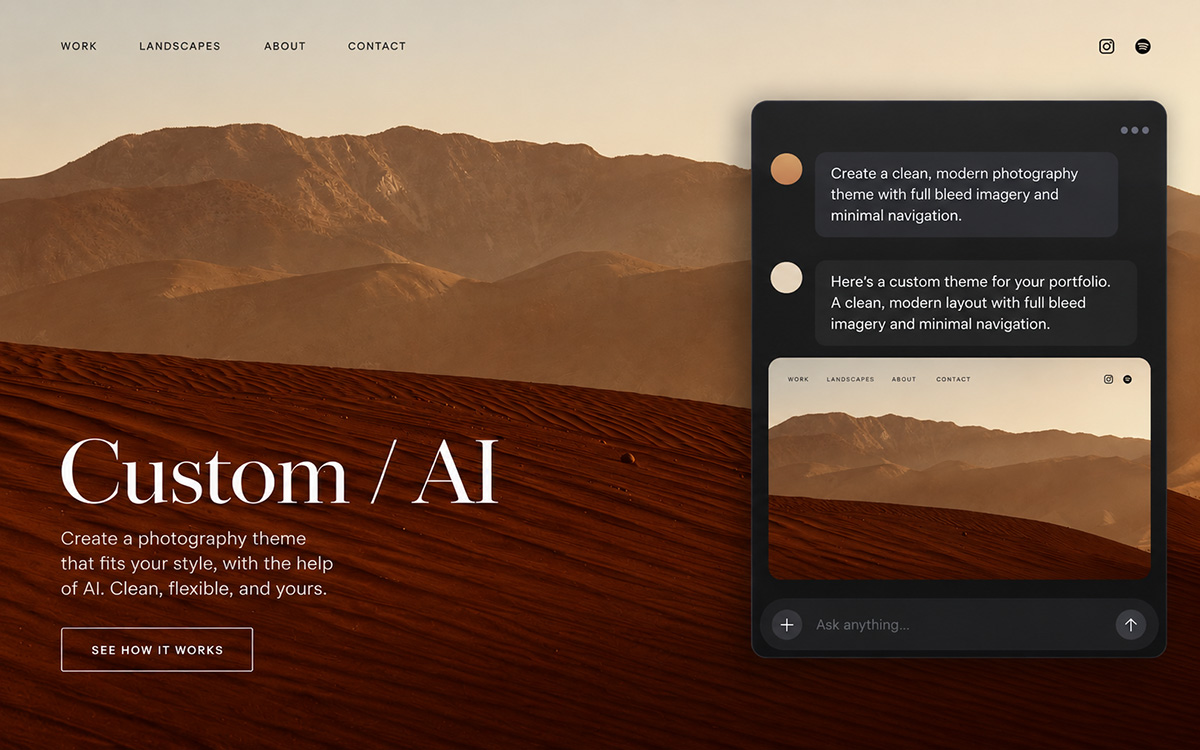
You can now have the AI of your choice design your website, using the new "Custom / AI" theme. The AI controls how everything looks and 22Slides controls what is on the page.
A custom theme is one file that holds the whole design of your site: the header, the navigation, how galleries and text are laid out, the colors and type, the lightbox, the footer. Your AI writes that file. Your pages, images, text, forms, passwords, domain and hosting all stay with 22Slides, exactly as they are, and you keep editing your content in the 22Slides editor.
It's the best of both worlds. Your AI does what it's best at, designing, and 22Slides keeps doing what it's best at: managing your content, hosting and delivering your images, and offering real human support.
It works with the AI you already use. Claude, ChatGPT and AI coding tools such as Claude Code and Codex can connect to your site directly and save their work themselves. Free accounts are enough.
Before you start
You need two things: your 22Slides site, and an AI app. A free ChatGPT or Claude account is enough.
Nothing you do with the AI changes your live site. Everything it makes goes into a draft that only you can see. Visitors keep seeing your current design until you press Publish. You can throw the draft away at any time, and if you publish something you regret, your previous design is kept.
The AI does the technical work. You do not need to understand the code, and you can talk to the AI about how the site should look and feel, not about HTML.
Step by step
- In your editor, open the Theme tab, click Choose another theme, and pick Custom / AI. Your site switches to a draft of the starter theme; visitors still see your old design.
- Click AI connector.
- Click Copy message. The message tells your AI how to connect to your site.
- Open your AI app, start a new chat, and paste the message.
- The AI will either connect on its own, or tell you how to add 22Slides as a connector in the app's settings. Follow its instructions; this is a one-time step.
- Answer its questions. It will ask what kind of work you make, what feeling you want, light or dark, and so on. Then it designs your site and saves the result as a draft.
The AI will give you a preview link when the draft is ready. Keep that tab open: it shows your site with the draft design and refreshes on its own each time the AI saves a change.
Publishing
When you are happy, go to the Theme page and press Publish. Visitors see the new design from that moment.
If you are not happy, Discard this draft theme throws the draft away and your editor goes back to the published design. You can also download the draft or the published theme at any time, from Theme → Theme code, if you want to keep a copy for later.
Making changes later
Ask the AI, in the same chat or a new one. It always starts from your current theme, so a small request stays a small change: "make the menu text a little larger" changes the menu text and nothing else. You do not need to describe the whole design again.
If you want a whole new look, say so, and the AI will ask about your work and what you want before starting over.
Each change goes into a draft, as before. Publish when you are happy with it.
Changing your content
Your content is still edited in the 22Slides editor: adding photos, writing text, adding and reordering pages, the menu, your site title, social links and logo. If you ask the AI to change any of these, it will send you to the right place in your editor with a link, then carry on with the design.
There is one exception. The AI can add HTML sections to your pages, for things the editor has no section type for: a list of testimonials, a pricing table, a services grid, an embed from another service. These are real content on the page, so search engines see them.
A section the AI adds starts hidden. You will find it in your editor on the page the AI named, with the usual show/hide control. Nothing reaches visitors until you show it. The AI will only put real testimonials, prices or client names into a section if you have given them to it; otherwise it uses clearly marked placeholder text for you to replace.
Starting from your current design
If you like the design you have on a built-in theme and want to build on it rather than start fresh, download a description of it first. On the Theme page, while the built-in theme is still selected, click Download design. You get a file describing your theme and every customization you have made: fonts, colors, spacing, and how each kind of section is laid out.
Give that file to your AI along with the connection message and ask it to rebuild the design as your custom theme. The result will be close, not identical: the AI rebuilds the design in its own code rather than copying the theme. Once it is rebuilt, you can change anything about it.
Keep the connection message private
The message you copy from the AI connector page contains a private address for your site. It works like a password: anyone who has it can change your draft theme and add hidden sections to your pages. They cannot publish, change your published site, or see anything in your account.
Share it only with your own AI. Do not post it anywhere, and do not paste it into a chat you share with other people. If you think it has gotten out, email support@22slides.com and we will give your site a new address, which makes the old one stop working.
Which AI apps work
Use an AI app that supports connectors. These do, including on free accounts:
- Claude (web, desktop and mobile apps)
- ChatGPT (web, desktop and mobile apps)
- Claude Code, Codex and other AI coding tools, if you are comfortable with those
An AI that cannot add connectors cannot save its work to your site, so we recommend one of the above. If you have a finished theme file from somewhere else, you can paste it into Theme → Theme code in your editor yourself: the whole file, from <!doctype html> to </html>. It is saved as a draft and checked, and you will see a message if something is wrong with it.
Common questions
Does it cost extra? No. The Custom theme is part of every 22Slides plan. You use your own AI account, so any cost is whatever that AI charges you; free ChatGPT and Claude accounts work.
Which AI should I use? Any of the major ones. The more capable the model, the better the design, so use the best one your account gives you. Coding tools such as Claude Code and Codex work very well but are made for developers.
Can I go back to a built-in theme? Yes, at any time: choose another theme on the Theme page. Your custom theme is kept, so you can switch back to it later. Your customizations to the built-in theme are kept too.
What happens to my old design? Nothing. Switching to the Custom theme and working on a draft never changes what visitors see until you publish. After you publish, your previous published design is kept as well.
Can the AI see my photos? The AI gets a description of your site: your pages, how many images each section has and their shapes, and your text. If your AI can open web pages, it can look at your site to see the work itself. It never gets your password, your account details or your images' original files.
Can I write or edit the theme myself? Yes. It is one file of ordinary HTML, CSS and JavaScript, at Theme → Theme code. Paste in your changes and they go to the draft like any other.
22Slides and AI
Using AI to design your theme does not mean your work is being scraped to train AI models. Your photos and text stay yours, and choosing the Custom / AI theme changes nothing about how your site is protected.
Most traffic on the web today is AI crawlers and scraping bots, not people, so we go to great lengths to keep them away from every 22Slides site and shield your published work from being harvested for training. That protection stays in place whichever theme you use.